
Import/Export
Import a Design
Import DXF, STP, STEP, IGS, IGES, STL, DWG, and SVG CAD files or BMP, JPG. JPEG, PNG and GIF image files.
*STEP, STP, IGES, IGS and STL import are in beta release*
- Choose File > New > Blank Design.
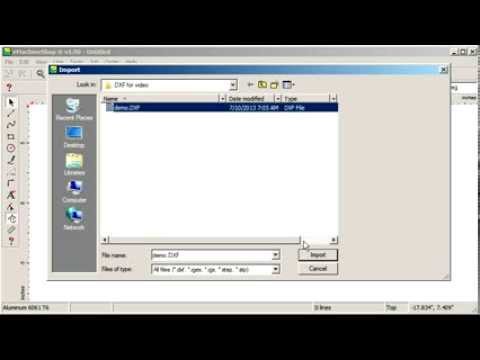
- In Cus industrial CAD, choose menu File > Import and select Files of type: and choose the desired file type.
For best results and fastest processing when importing images use images that are:
- Black and white.
- Composed of thin lines.
- Less than 2000 pixels for their largest dimension.
- Containing no shapes solidly filled with a color.
Select Customize Import for image import settings.
Import via DXF From a Different CAD Software
- In the original CAD program, open the design and set scaling to 1:1.
- Make the design using the minimum views that represent all of the features. (The needed views match the orientation of the material during machining. 2D parts only need one view. For 3D parts, start with one or two key views and if needed, add other views later).
- Turn off title blocks, dimension lines and all unnecessary lines that do not detail the shape of the part.
- Export the drawing to ASCII (not binary) DXF format.
- In Cus industrial CAD, choose menu File > Import and select the DXF file.
Simplify an Imported File
Imported files often have many small line segments that may increase pricing.
Simplify lines after importing to reduce the amount of line segments.
- On the bottom of the screen, view the number of line segments.
- If there are many segments, simplify the lines.
- Depending on how many lines there are, it may be worthwhile to draw new lines over the existing segments, then delete the old lines. This will simplify the drawings the most effectively.
Trace Images
“Import” an existing physical object using an image using the Tracing feature.
 ▶
Export to DXF, IGES & STEP
Export an Cus industrial CAD file to a popular file type with Cus industrial’s premium export service.
- Create your design in Cus industrial CAD.
- Choose menu File > Export.
- In the “Save as type:” dropdown list, select your preferred file type and click “Export.”
- On the bottom of the following dialog, click the “Order” button. The webpage will open automatically.
- Enter your payment information in the secure form. Click Submit.
- Once the payment is processed, an export key will be sent to the email provided.
- Once you have recieved your export key, copy it, and paste the code into Cus industrial CAD dialog in the “Authorization Code” entry.
- On the bottom left of the dialog, click “Export.”
Export to STL
You can export an Cus industrial CAD file to STL format.
- Create your design in Cus industrial CAD.
- Choose menu File > Export to STL.
Export to STL Troubleshooting
If you have trouble exporting to STL, the following may fix the issue.
- If one line or shape is partly collinear with another, choose menu Line > Contour to expand or contract the line a small amount, then delete the original line.
- You may need to remove near edge chamfers (bevels) or rounding.
- If splines are not considered closed in your design, choose menu Line > Convert Splines To Arcs.
- If any lines have many small segments, choose menu Line > Simplify or redraw lines by tracing over existing ones.
- Remove thread and bend lines.
- If the shape is a turned shape (like a chess pawn), but is not designed using the Revolve feature, choose menu Tools > Convert To Revolve.
- When a contour has arc to arc connections, try adding a small straight segment between the arcs.
- If none of the above works, make a copy of the design file, open it in a new design, and remove one feature at a time to isolate the issue.
Paid Export Troubleshooting
If you have trouble exporting to DXF, IGES, STEP or STL; the following may fix the issue.
- If the form that opens when “Order” is clicked does not contain your CAD serial number, you can find and copy it from the dialog in Cus industrial CAD.
- If you did not recieve an email with an export code after payment processing, Contact Us